


PROMPTMEMES & HOW TO USE DREAMWIDTH
the posting instructions (formatting and guidelines) for the enhypen prompt meme can be found HERE.
note: this post assumes a very casual tone as it was originally intended for friends of the author and written after a twitter poll asking if people were interested in a step-by-step guide for dreamwidth / dreamwidth prompt memes with images and the only options to receive votes were "yes" and "im not stupid (yes)", and a request to explain this stuff as the person was five.
it was then used to serve the same purpose for a wider audience by being linked to the official prompt meme itself (where it was admittedly originally also presumed there would only be friends of the author). as you can see from the date of the post, it was written before the prompt meme's first round and has not been updated much since. with this out of the way, let's begin.
so what do you need to know?
1.1. when you open
![[community profile]](https://www.dreamwidth.org/img/silk/identity/community.png) given_taken, congratulations, you are visiting the community for the prompt meme. on dreamwidth your personal account is called a journal; normally i operate under
given_taken, congratulations, you are visiting the community for the prompt meme. on dreamwidth your personal account is called a journal; normally i operate under ![[personal profile]](https://www.dreamwidth.org/img/silk/identity/user.png) girlishpop but created fatemp3 to moderate the prompt meme/community. the pros and cons and differences between journals and comms don't really matter here, but just wanted to mention it.
girlishpop but created fatemp3 to moderate the prompt meme/community. the pros and cons and differences between journals and comms don't really matter here, but just wanted to mention it. you can see which account made a post in a community. logged in users show in the comment sections.
1.2. so you're on the community. right now it's pretty empty, but there will eventually be a few entries/posts. the main thing is going to be The Prompt Post, which is where the fest takes place.
1.3. to leave a prompt, you have to open the prompt post. this you can do in a couple of ways; either by the header/post title (big text up top) or by pressing on the comment section (# comments) to take you directly there. if the comment section is empty, you will just be told you can reply to the post.
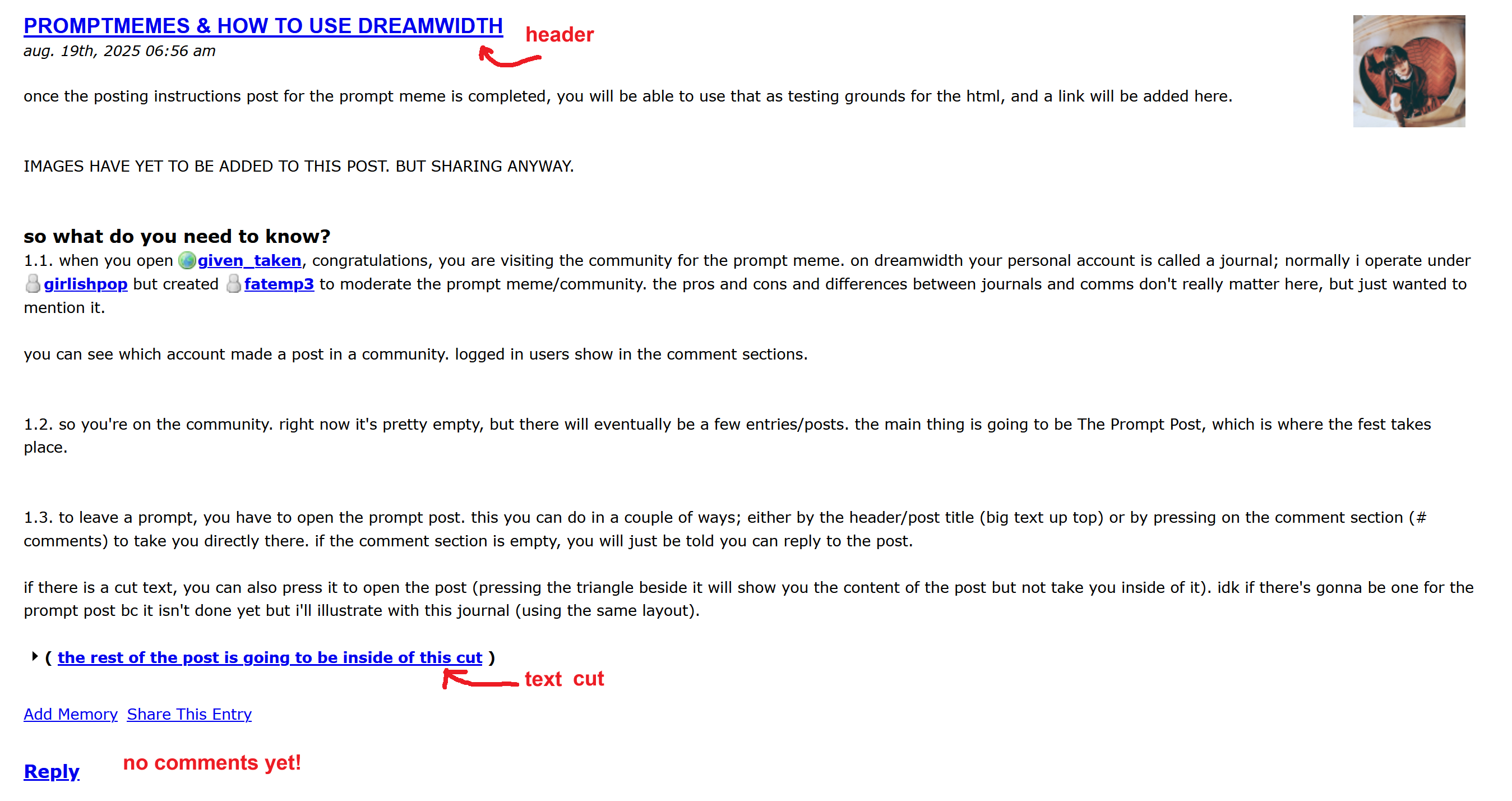
if there is a text cut, you can also press it to open the post (pressing the triangle beside it will show you the content of the post but not take you inside of it). it's just html you use to not have the bulk of the post show automatically on the journal/comm, which is nice for longer posts. idk if there's gonna be one for the prompt post bc it isn't done yet but i'll illustrate with this journal (using the same layout).
1.4. the comment section is beneath the body of the post. here's where the magic in a prompt meme happens! all prompts are posted as comments, and all fills are posted as replies to those comments.
if you click on # Comments (if the post has comments), you will be taken directly to the comment section and have to scroll up to see the post. there will be nifty stuff like how to format your prompts, including the html to use either directly there or linked to up in the prompt post.... but again, formatting not enitrely finalised for the prompt meme posts yet.
in an empty post, the comment section looks like this:

if there are comments, the comment section looks like this:

i'm going to be use a bunch of different posts and journals/comms for image material, and also different browsers at times, so if there are any inconsistencies it might be due to that. i hope you can still follow along anyway!
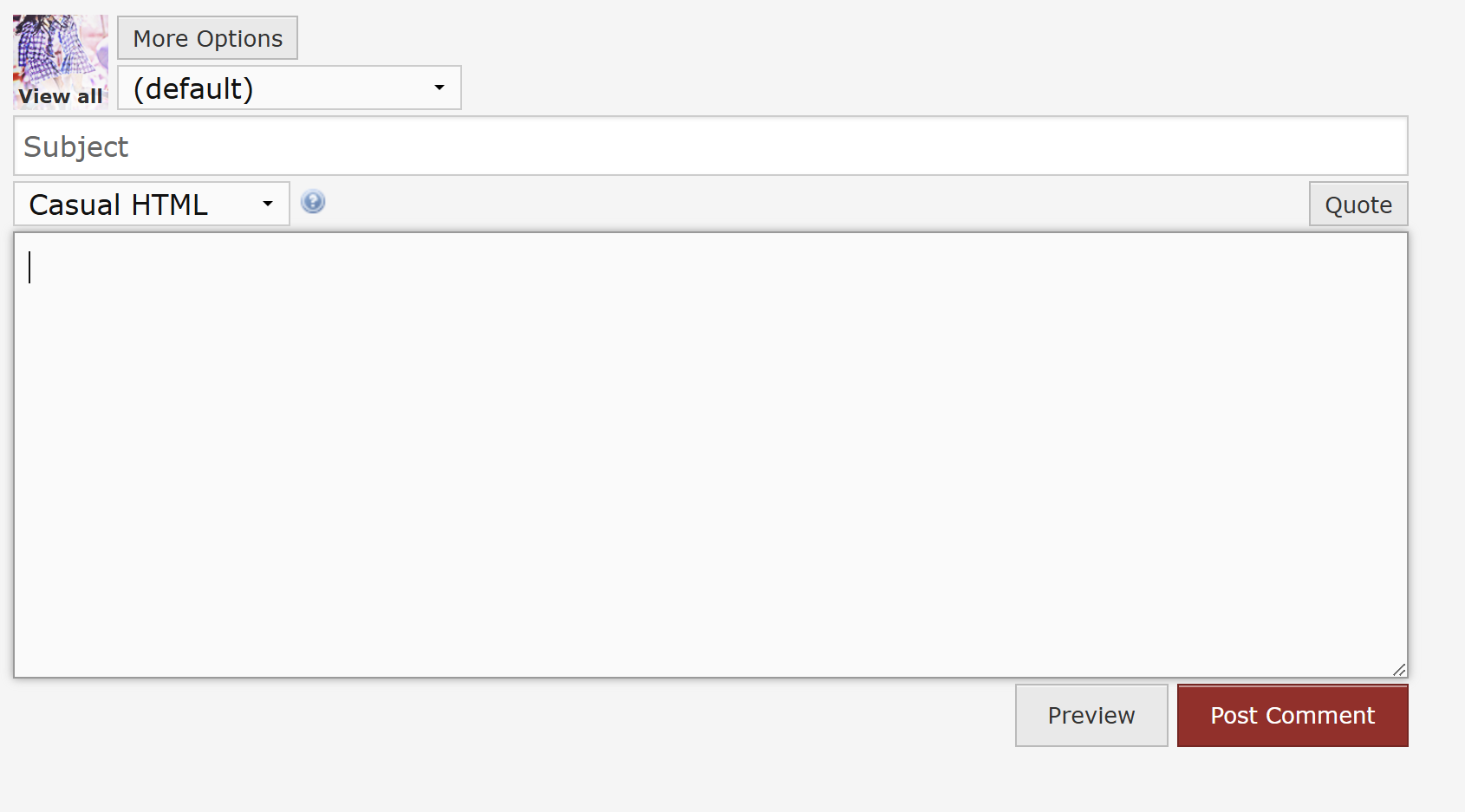
1.5. you click Post a new comment to make a new comment.
it will look something like this if you're logged in
and like this if you're not.
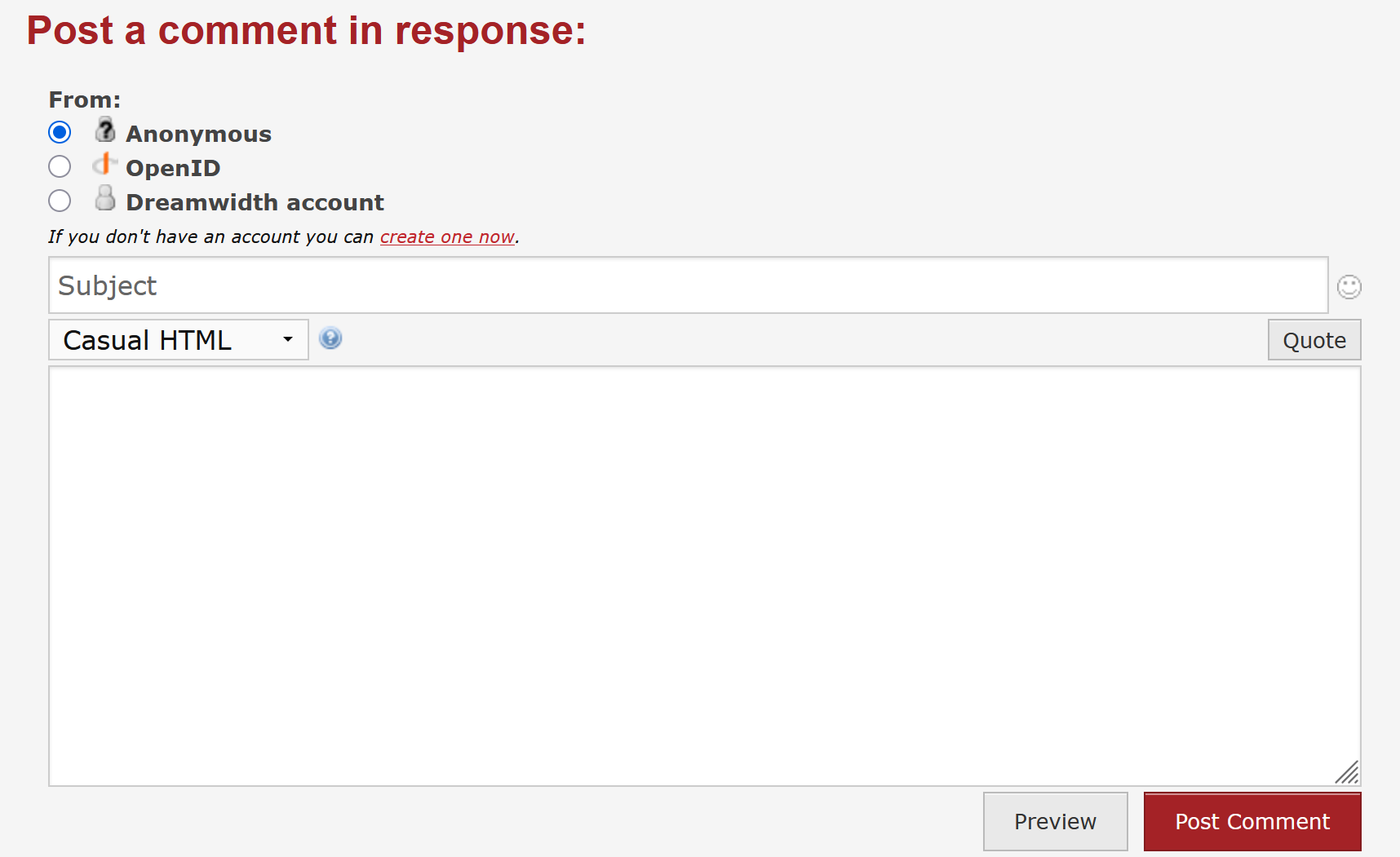
if you're logged in, you can still chose to post anonymously (sometimes you must click "More options" for it to show up).
side note, but having a journal is kinda fun because you have 15 icon slots and you can chose whichever one you want to use whenever you're posting :)
1.6. the big box is for the body of the comment. this is where you'll put your prompts and you can paste the provided html formatting for how prompts are structured. on different memes they can look a bit different, but there's generally a place to write ship/character and the prompt itself.
in the posting instructions post, you will get the specifics but the format will be
Character/Ship:
Tags:
Prompt:
when you've copied the format (including html) you paste it in the big box
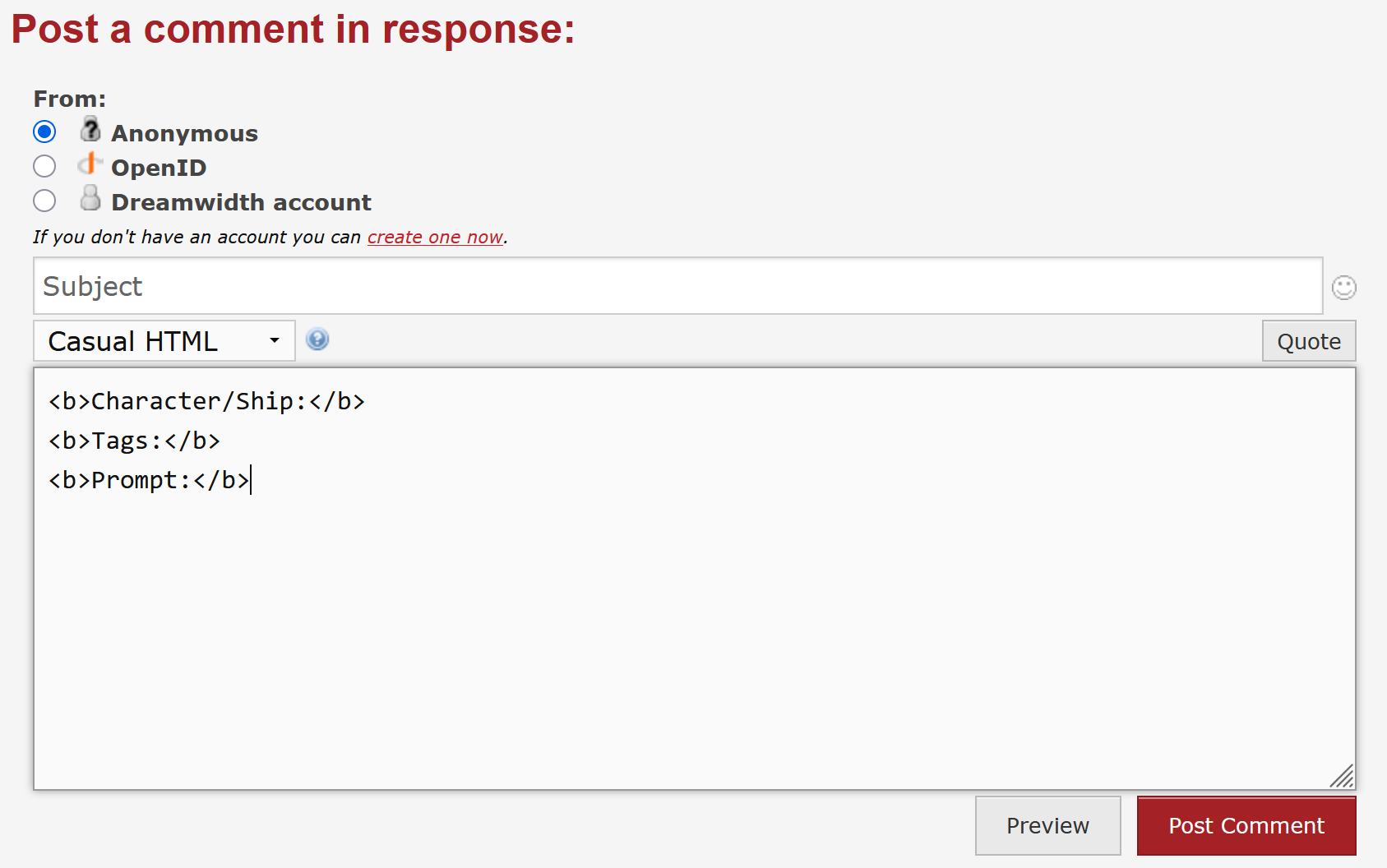
1.7. as mentioned, the prompt formatting uses html tags. this is how you get bold text, italics, etc. you need to enter your additional text in your comment OUTSIDE of the closed html tag. this means after </b> in this case. if you put it inside of the tag, that text will also be bolded. this would be a wrongly formatted prompt.
i'm not going to go into html too much, but the two things you might want to learn for prompting and filling is that <b> bolds and <i> italicises the text between it and the closed tag </b> and </i> respectively. so if you want an Oh. Oh. moment. that's how you do it.
dreamwidth comments are by default in casual html. do not change this.
1.8. a filled in prompt can look something like this:

in this image, i hit Preview to look at my comment to make sure it looks the way it's supposed to, or see if i want to add anything else etc. this is how the comments will look if you aren't logged in.
or this:
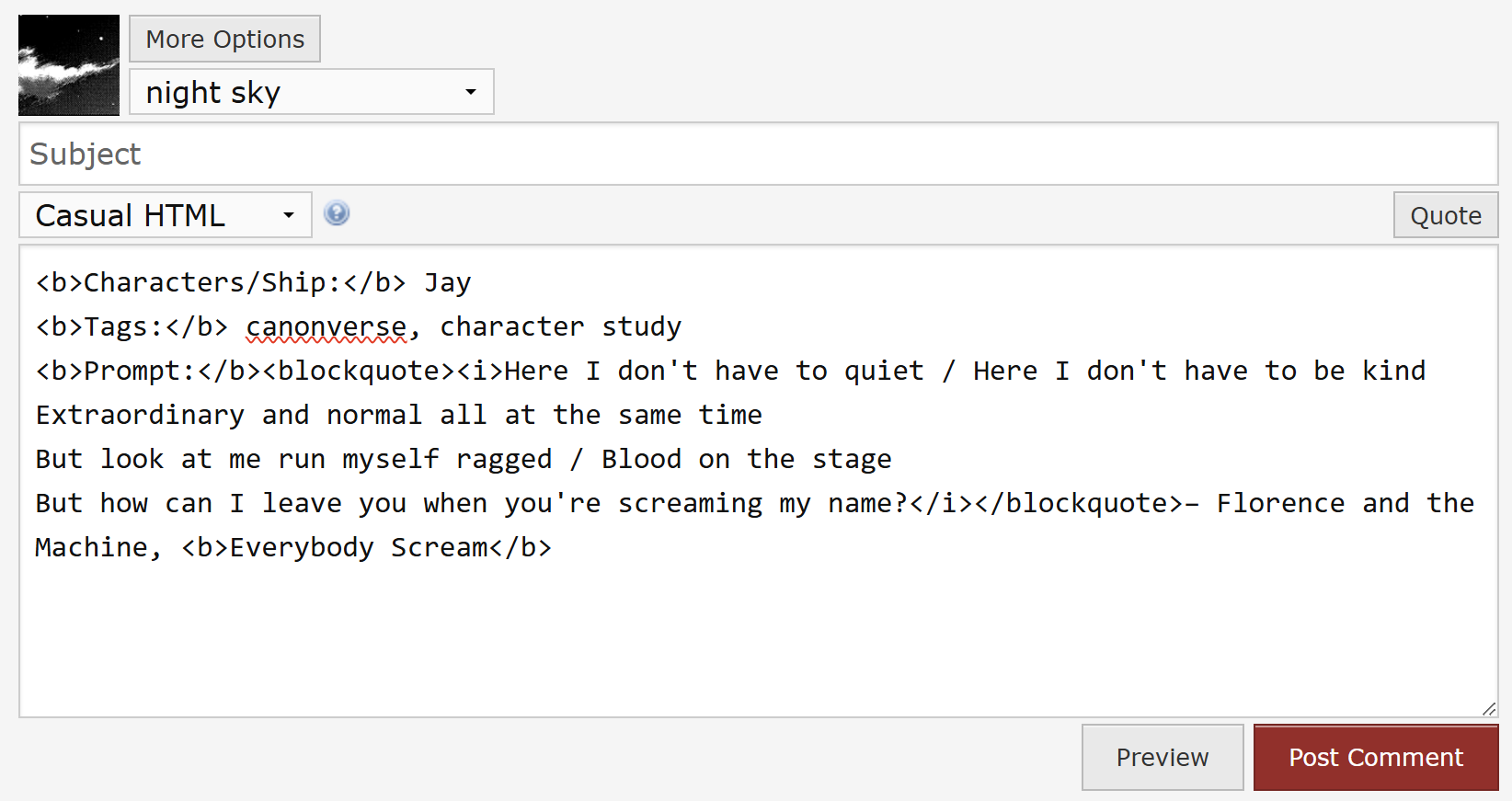
1.9. when you're happy with how it looks (or if you skip the preview step because you know you're good), then you can just hit Post comment. then your comment shows up in the comment section of the post, and will show up below other previously made comments on the post. a wrongly formatted prompt might be deleted. idk how strict i'm gonna be.
1.10. so now you know how to make a prompt, because you know how to leave a comment and kind of what to put into it! what next then? filling? well, yes. eventually. but first.
how do you navigate the prompt post's comment section?
2.1 as i mentioned above, new comments show up in the comment section. comment sections are in chronological order, with oldest first and newest last. this is however only true for top-level comments. which has nothing to do with the quality of the content - top-level comments are comments made using (Post a new comment), ie the previous step.
2.2 comment sections are divided into pages once there are enough top-level comments. i don't remember exactly how many top-level comments there are per page before a new one is created from the top of my head, but it happens automatically. nothing for any of us to concern ourselves with.
it looks like this though:
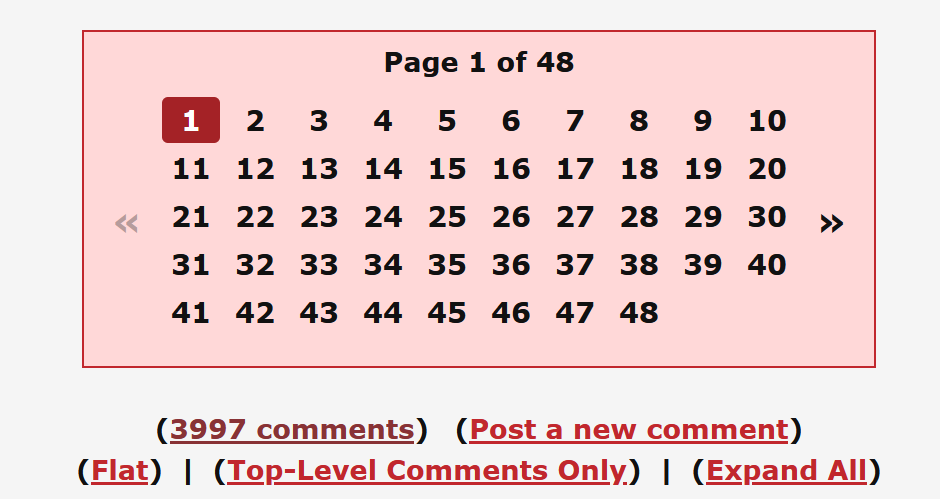
2.3 new top-level comments appear on the latest page and not the first, so don't refresh to see new top-level comments (ie prompts) once pages have appeared. refresh if you want to see any replies that have been added to top-level comments on the post tho.
ok, top-level comments will contain the prompts? then how do i fill?
3.1 fills go into replies to prompts. and replies are comments that are, well, replies to top-level comments. (but they add to the total comment count - so if a post is one top-level comment and one reply, it'll say the post has 2 comments.)
you make replies by clicking (Reply to this) on the comment you want to reply to.
3.2 when you decide to reply to something and press (Reply to this) the same type of comment box as when we were making the prompt comment pops up.
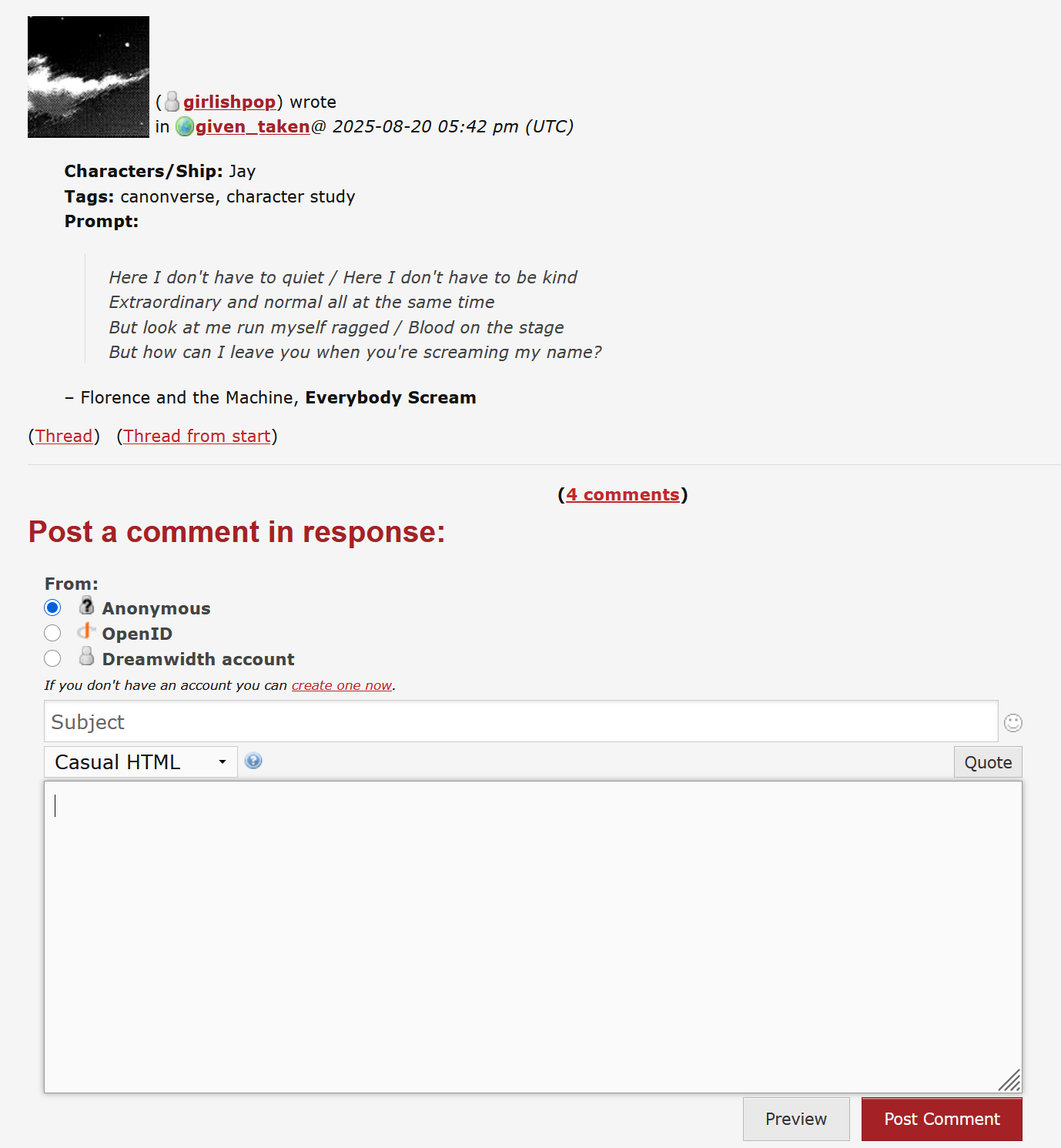
3.3 and it works mostly the same. HOWEVER. for fills, we use the Subject line. there will be a guide on how it should, again, it's not done yet. but you write [FILL] in the subject line above the body of your comment, and any title you would like to give your fill. if it's nsfw i'm probably gonna request it says so in the subject line too. (NSFW)
but yeah. there's going to be html to copy in, where you specify the pairing or characters your fill is about - yes even if it's the exact same ship as the prompter asked for - and any tags (ao3 tags, ao3 inspired, complete freeform) that are relevant / that you want to use, preferably including or based on what the prompter used. i still haven't decided if any tags are mandatory.
3.4 then you hit enter a couple of times until you have an empty space between your info and then you add your fill. (i typically write wherever i normally do, and then copy/paste it in.) remember to add any html if you want to format your text (italics.. i'm thinking about italics..).
if you are posting art, there will be html for you to copy/past into your comment for that and all you need to provide is either the image URL if you are embedding the image (logged in users) or an url to where it's posted if you're linking (anonymous users).
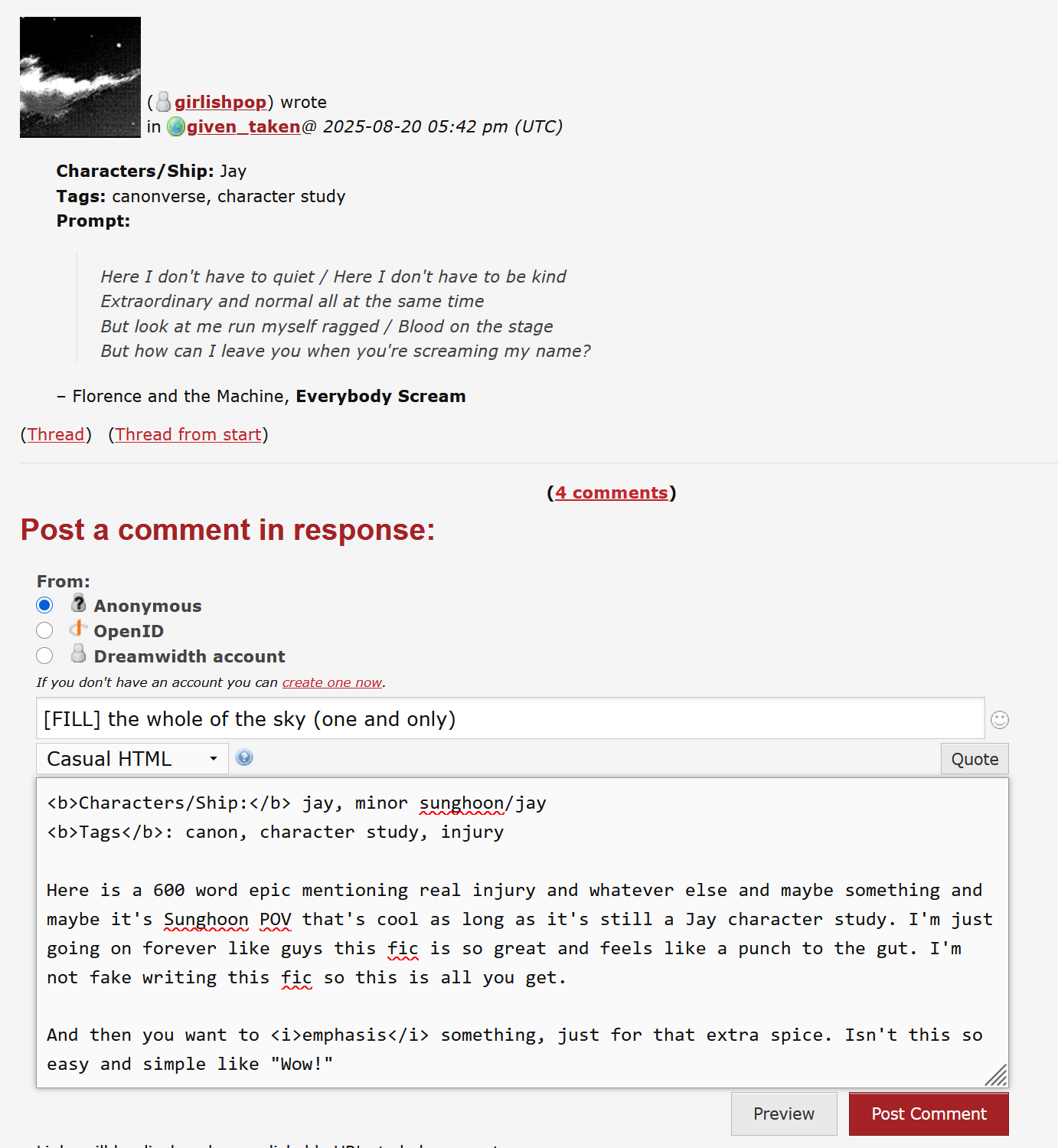
3.5 then you hit (Preview to preview, or) Post comment and bam! you've replied. your fill is up there!
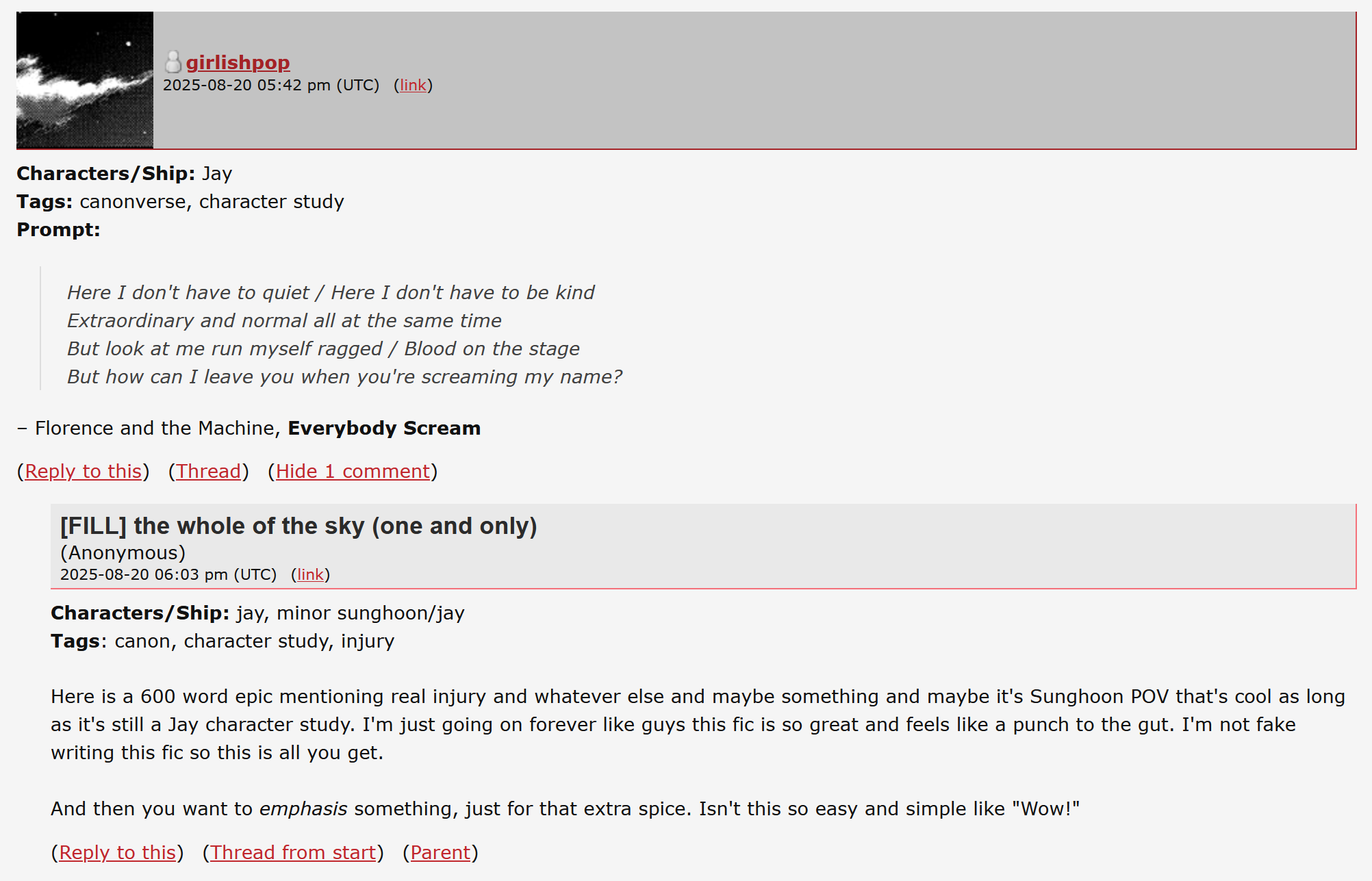
previously shown quote prompt:
an image prompt i did before to try out the formatting/to show how a prompt/fill should look:
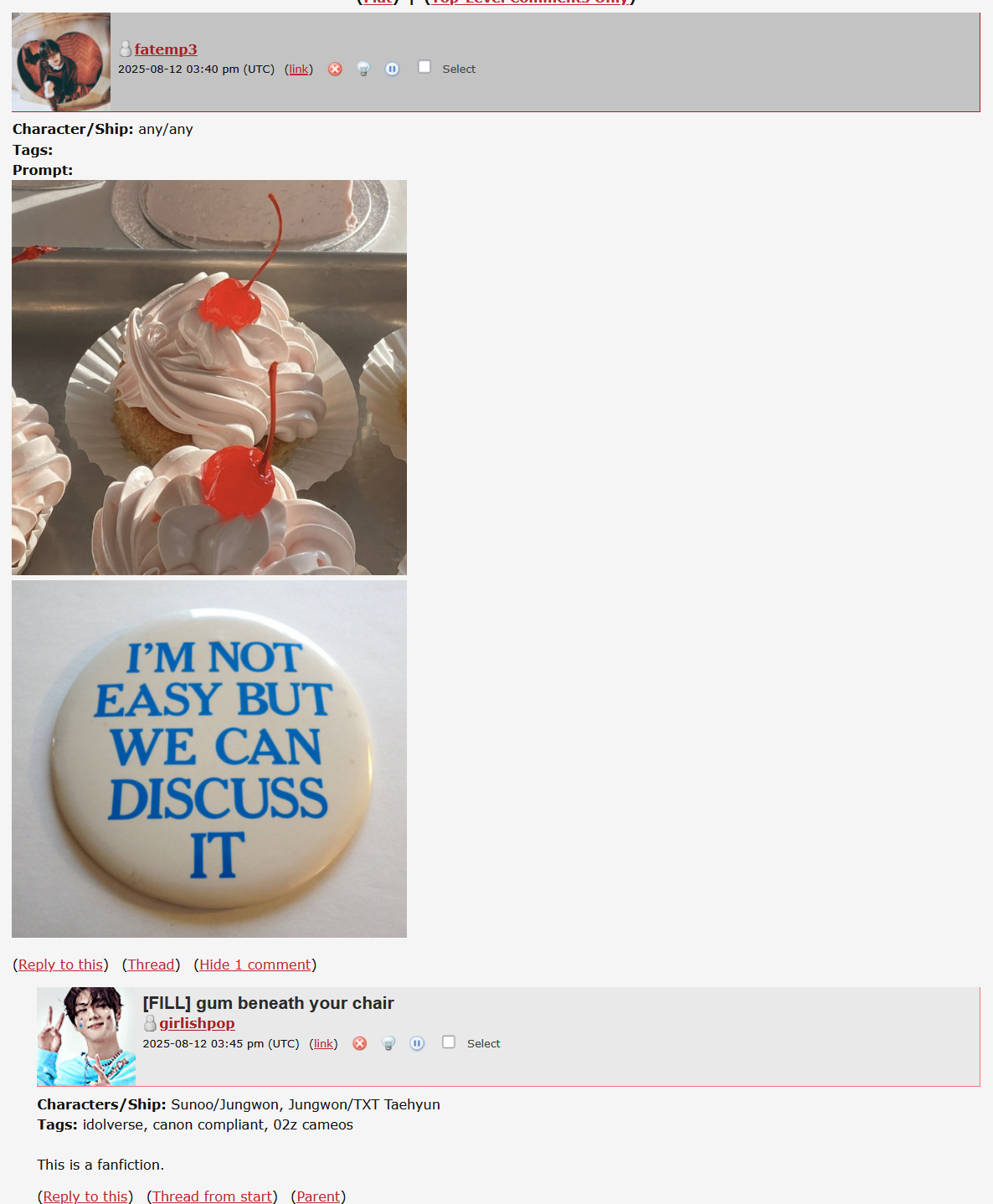
please ignore that it has some extra symbols on the comments, it's because i'm a logged in admin of the community.
IMPORTANT TO NOTICE. COMMENTS CAN ONLY BE EDITED BY LOGGED IN USERS. COMMENTS CAN ONLY BE EDITED UNTIL SOMEONE HAS REPLIED TO THEM.
3.6 the act of replying to top-level comments creates comment threads. replying to fills simply serve to makes the comment thread longer.
3.7 replies come with the options: Reply to this, Thread from start, and Parent.
Reply to this: self-explanatory? do you want to reply to the reply? get that comment thread going properly? maybe you love the fill and want to tell them! i'd like to encourage people to try to keep the meme alive by doing this, it's part of the fun! it also creates engagement for those works that you might for whatever reason decide to not crosspost elsewhere.
Thread from start: when you want to see the top-level comment of the comment thread.
Parent: the comment that the comment you're looking at is in response too.
Thread from start and Parent are very useful in flat view, to see what a comment is responding to.
3.7.1 on your comment, there is a small bit that says (link). if you want to link to your fill on twitter or ao3 or something, click it to go to that comment in the thread and then copy the URL to use as you wish. or you can get the link to the prompt if you'd rather link to that, it's up to you.
browsing options of the comment section
4.1 Top-level comments only: all replies are hidden. good if you want to browse the meme without seeing any fills? which might be helpful if you want to pick freely from the prompts without feeling bad if some prompts don't get fills while another gets several
Flat (also called flatview/flat view): all comments on the entire post are in chronological order without being threaded, with most recent comment last. you might think.. why would i need that? and you don't really if you only plan to leave prompt comments or post fills, or refresh to see if you get any comments on your specific comments, and just checking the last page (if there are multiple) to see if there are any new prompts posted will work just fine.
flat view is if you're interested in keeping up with ALL comments made, or maybe you see that the comment count of the post has gone up but you can't tell where the new comment is? maybe it is someone who has responded to your anonymous comment that you don't get a notification for since you aren't logged in? etc. (i often use flatview when browsing active memes after i'm caught up to all current pages the first time i enter a post, but this is a personal preference. i know many people who never used flatview.)
further questions?
this is genuinely all i can think of right now, except that i need to complete the proper posting instructions post for the comm.
but if you have unanswered questions, don't be afraid to reach out!
and feel free to use the comment section of this post to try it out, even if i don't have all the html ready for you yet.